## Grove Networks Blog
Grove Networks has been serving the Miami area since 2000, providing IT Support such as technical helpdesk support, computer support, and consulting to small and medium-sized businesses.
[ Categories ](https://www.grovenetworks.com/blog/categories "Categories")
[ Tags ](https://www.grovenetworks.com/blog/tags "Tags")
[ Categories: All Categories ](https://www.grovenetworks.com/javascript:void(0); "Categories")
Search...Suggested keywords
[ x ](https://www.grovenetworks.com/javascript:void(0);)
Font size: [ + ](https://www.grovenetworks.com/javascript:void(0);) [ – ](https://www.grovenetworks.com/javascript:void(0);)
[ Print ](https://www.grovenetworks.com/blog/tip-of-the-week-the-easiest-way-to-share-files-between-2-pcs?tmpl=component&print=1&format=print "Print")
# Tip of the Week: The Easiest Way to Share Files Between 2 PCs
[How To](https://www.grovenetworks.com/blog/categories/how-to)
[Andy Judge](https://www.grovenetworks.com/blog/blogger/andy-judge)
Wednesday, 09 September 2015
[](https://www.grovenetworks.com/images/easyblog_shared/September_2015/9-9-15/new_home_networking_400.jpg "new_home_networking_400.jpg")So you’ve got two personal computers and you need to share a file from one to the other. What’s the best way to go about this? You might be surprised to learn that doing this is as easy as dragging and dropping.
Before we show you how to do this, let’s backtrack a bit and go over some of the most common ways that files are shared between two PCs.
- Via external memory device, like a USB thumb drive.
- Via email.
- Via a cloud data storage service.
All three of these options are easy to use, yet, they each have their drawbacks. For example, thumb drives are prone to getting lost or stolen, and both email and the cloud are dependant upon a working Internet connection controlled by a third party.
One solution that has neither of these drawbacks is a home network. Setting up a network for two or more of your computers is easy to do and doesn’t require a server unit, switches, and all the other IT gear like what your network at the office needs. Instead, if your personal computers are both connected to the same Internet router, then you’ve got what it takes to share a file between the two machines by simply dragging and dropping.
**Use My Network Places**
**My Network Places** is essentially a file on your PC shared between your two computers. You will be able to spot which PC is connected with the shared file because it will be designated by the PC’s assigned name. Once you spot the folder (use the Windows search bar to find it), drag and drop the file you want to share into it. You will then be able to access this shared content in **My Network Places** on your other computer.
**Create a Windows Homegroup**
Another option for your home-file-sharing needs is to setup a Windows Homegroup. This is actually a better option than using My Network Places because it provides greater security. To set this up, type “homegroup” in the Windows search box and hit **Enter**. If Windows can’t find any existing homegroups on your network to choose from, click **Create a homegroup**.
Now select what kind of content and devices you want to share in this homegroup and click **Next**.
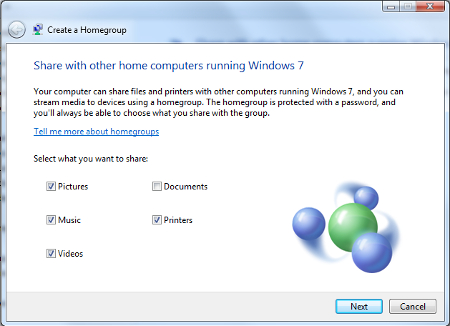
Windows will now generate the homegroup and provide you with a password to access it. Be sure to record this password in a place that’s safe.
To access your newly set up homegroup on your other computer, search for “homegroup” in the Windows search bar to bring it up. You will next be notified that a new homegroup has been set up. Now, click **Next** > Enter the password > click **Next** again > and your two devices will be able to easily and securely share files. You can even add multiple devices and users to this homegroup if you need to.
Sharing files over your home network is easy, but it gets more complicated when you’re dealing with multiple workstations on your office network. For assistance with your company’s networking needs, give Grove Networks a call at (305) 448-6126.
[ ](https://www.grovenetworks.com/javascript:void(0);) [ ](https://www.grovenetworks.com/javascript:void(0);) [ ](https://www.grovenetworks.com/javascript:void(0);) [ ](https://www.grovenetworks.com/javascript:void(0);)
Tags:
[Network](https://www.grovenetworks.com/blog/tags/network) [Tip of the Week](https://www.grovenetworks.com/blog/tags/tip-of-the-week) [Networking](https://www.grovenetworks.com/blog/tags/networking)
Comment for this post has been locked by admin.
Comments
No comments made yet. Be the first to submit a comment
**** Already Registered? [Login Here](https://www.grovenetworks.com/component/users/login?return=aHR0cHM6Ly93d3cuZ3JvdmVuZXR3b3Jrcy5jb20vYmxvZy90aXAtb2YtdGhlLXdlZWstdGhlLWVhc2llc3Qtd2F5LXRvLXNoYXJlLWZpbGVzLWJldHdlZW4tMi1wY3M=&Itemid=101)
Friday, 23 October 2026
Subscribe to the blog (Please fill in your email address to subscribe to updates from this post.)