## Grove Networks Blog
Grove Networks has been serving the Miami area since 2000, providing IT Support such as technical helpdesk support, computer support, and consulting to small and medium-sized businesses.
[ Categories ](https://www.grovenetworks.com/blog/categories "Categories")
[ Tags ](https://www.grovenetworks.com/blog/tags "Tags")
[ Categories: All Categories ](https://www.grovenetworks.com/javascript:void(0); "Categories")
Search...Suggested keywords
[ x ](https://www.grovenetworks.com/javascript:void(0);)
Font size: [ + ](https://www.grovenetworks.com/javascript:void(0);) [ – ](https://www.grovenetworks.com/javascript:void(0);)
[ Print ](https://www.grovenetworks.com/blog/tip-of-the-week-prevent-random-restarts-in-windows-10-by-setting-up-an-active-hours-schedule?tmpl=component&print=1&format=print "Print")
# Tip of the Week: Prevent Random Restarts in Windows 10 By Setting Up an Active Hours Schedule
[Grove Networks Blog](https://www.grovenetworks.com/blog/categories/blog) [How To](https://www.grovenetworks.com/blog/categories/how-to)
[Andy Judge](https://www.grovenetworks.com/blog/blogger/andy-judge)
Monday, 27 February 2017
[ 0 Comments ](https://www.grovenetworks.com/blog/tip-of-the-week-prevent-random-restarts-in-windows-10-by-setting-up-an-active-hours-schedule#comments)
[  ](//www.grovenetworks.com/images/easyblog_shared/March_2017/3-1-17/windows_10_time_to_restart_400.jpg "Tip of the Week: Prevent Random Restarts in Windows 10 By Setting Up an Active Hours Schedule")
Let’s say that you get to work in the morning and you’re ready to be productive, only to be greeted by a notification that your device automatically installed Windows 10 updates and has restarted itself? Windows 10 has achieved a reputation for such occurrences, and we’re concerned about that you could lose progress made on projects due to an unexpected restart. Thankfully, you can take measures to keep this from happening.
---
Windows 10 lets you schedule your updates with its Anniversary Update. This is thanks to the Active Hours feature, which lets users set times to update when their PC will most likely not be in use. By effectively using Active Hours, you can essentially set a restart schedule to make sure that the Anniversary Update doesn’t initiate an unplanned restart.
First, make sure that you have the Anniversary Update installed, which you can do by going to your PC settings. If you need to install this update, you can do so through the Update Assistant, which can be found here:
Once you have the update, just follow this guide to set up Active Hours.
First, click on the **Start menu** and navigate to **Settings**. If you want to do this with minimal difficulty, just press the **Windows Key + i**. After that, go to **Update & Security**.
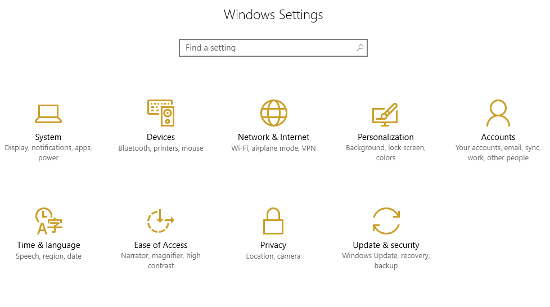
In the Windows Update tab, you’ll see a link where you can Change active hours. Click it.
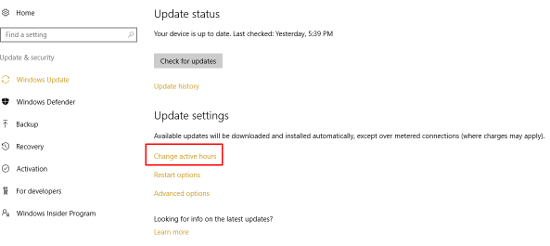
You can then set your active hours, but keep in mind that any times that exceed 12 hours cannot be plugged in.
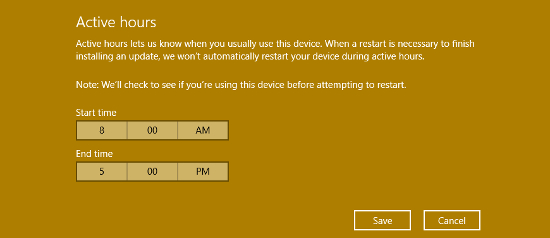
Finally, click **Save**.
Your PC will now only install updates during the hours that you have set. Still, it’s imperative that you keep in mind that this only applies to a 12-hour period. If you’re working on a major project that demands more rigorous working hours (like an overnight binge), you’ll want to take measures to make sure that this doesn’t happen while you’re in the middle of a task.
To do this, you can adjust your restart settings by staying in the Update & Security menu of your PC’s settings. Click on **Restart options**.
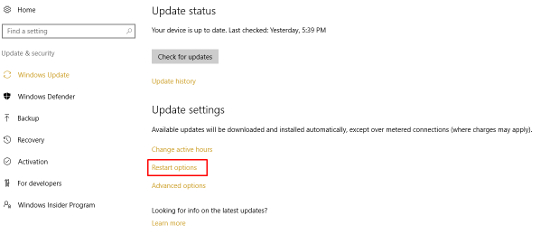
Turn this feature On.
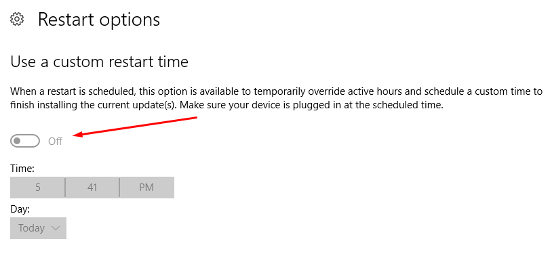
Finally, set the time and day that you want Windows to install updates. You won’t have to save anything, so as long as you make sure the switch is turned **On**.
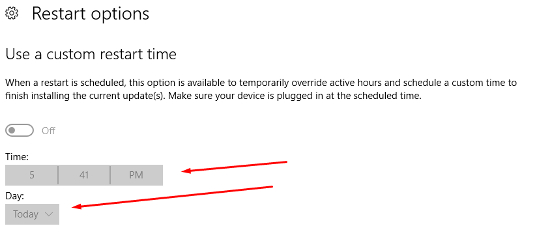
If you notice that the switch is grayed out, this means that you don’t have any updates available, and therefore, shouldn’t be concerned about updates becoming a problem and forcefully restarting your computer. Just check back from time to time if you find yourself needing to run your PC during your scheduled restart time.
For more tips and tricks, reach out to Grove Networks at (305) 448-6126.
[ ](https://www.grovenetworks.com/javascript:void(0);) [ ](https://www.grovenetworks.com/javascript:void(0);) [ ](https://www.grovenetworks.com/javascript:void(0);) [ ](https://www.grovenetworks.com/javascript:void(0);)
Tags:
[User Tips](https://www.grovenetworks.com/blog/tags/user-tips) [Tip of the Week](https://www.grovenetworks.com/blog/tags/tip-of-the-week) [Windows 10](https://www.grovenetworks.com/blog/tags/windows-10)
Comments
No comments made yet. Be the first to submit a comment
**** Already Registered? [Login Here](https://www.grovenetworks.com/component/users/login?return=aHR0cHM6Ly93d3cuZ3JvdmVuZXR3b3Jrcy5jb20vYmxvZy90aXAtb2YtdGhlLXdlZWstcHJldmVudC1yYW5kb20tcmVzdGFydHMtaW4td2luZG93cy0xMC1ieS1zZXR0aW5nLXVwLWFuLWFjdGl2ZS1ob3Vycy1zY2hlZHVsZQ==&Itemid=101)
Saturday, 24 October 2026
Subscribe to the blog (Please fill in your email address to subscribe to updates from this post.)