## Grove Networks Blog
Grove Networks has been serving the Miami area since 2000, providing IT Support such as technical helpdesk support, computer support, and consulting to small and medium-sized businesses.
[ Categories ](https://www.grovenetworks.com/blog/categories "Categories")
[ Tags ](https://www.grovenetworks.com/blog/tags "Tags")
[ Categories: All Categories ](https://www.grovenetworks.com/javascript:void(0); "Categories")
Search...Suggested keywords
[ x ](https://www.grovenetworks.com/javascript:void(0);)
Font size: [ + ](https://www.grovenetworks.com/javascript:void(0);) [ – ](https://www.grovenetworks.com/javascript:void(0);)
[ Print ](https://www.grovenetworks.com/blog/tip-of-the-week-how-to-freeze-excel-rows-and-columns?tmpl=component&print=1&format=print "Print")
# Tip of the Week: How to Freeze Excel Rows and Columns
[How To](https://www.grovenetworks.com/blog/categories/how-to)
[Andy Judge](https://www.grovenetworks.com/blog/blogger/andy-judge)
Friday, 22 May 2015
[ 0 Comments ](https://www.grovenetworks.com/blog/tip-of-the-week-how-to-freeze-excel-rows-and-columns#comments)
[](https://www.grovenetworks.com/images/easyblog_shared/May_2015/5-27-15/microsoft_excel_400.jpg "microsoft_excel_400.jpg")Modern office workers spend lots of time entering data and crunching numbers with Microsoft Excel. Therefore, it’s essential that Excel users know how to best navigate a spreadsheet. One of the best ways to make Excel easier to use is by freezing its rows and columns.
It may be a pain point for Excel users to view a spreadsheet that’s larger than their screen. It can be annoying to try and scroll up, down, or sideways, only to have a crucial piece of information that you want to reference scroll off screen. The best way to prevent this is to freeze a needed row or column into place so that it doesn’t move while you scroll through your spreadsheet. Here’s how you do it:
The first thing you’ll do is **select the cell that’s in the first column and row that you don’t want to be frozen. Next, go to the View tab and click Freeze Panes.** A drop down menu will appear. **From here, click on the first option, Freeze Panes.**
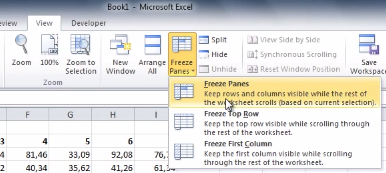
This will freeze multiple rows and columns in place, which means that they’ll stay in place and visible when you scroll. With your selected rows and columns now frozen, test this out by scrolling sideways, up, and down on your spreadsheet.
When you’re ready to unfreeze your rows and columns, simply **select any row or column and then go to the View tab. Now go to Freeze Panes > Unfreeze Panes**.
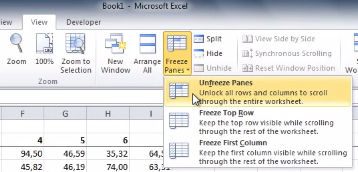
By freezing columns and rows, you’ll find Excel to be easier to navigate. Check back with Grove Networks’s blog every week for more time-saving tips.
[ ](https://www.grovenetworks.com/javascript:void(0);) [ ](https://www.grovenetworks.com/javascript:void(0);) [ ](https://www.grovenetworks.com/javascript:void(0);) [ ](https://www.grovenetworks.com/javascript:void(0);)
Tags:
[Excel](https://www.grovenetworks.com/blog/tags/excel) [Application](https://www.grovenetworks.com/blog/tags/application) [Tip of the Week](https://www.grovenetworks.com/blog/tags/tip-of-the-week)
Comments
No comments made yet. Be the first to submit a comment
**** Already Registered? [Login Here](https://www.grovenetworks.com/component/users/login?return=aHR0cHM6Ly93d3cuZ3JvdmVuZXR3b3Jrcy5jb20vYmxvZy90aXAtb2YtdGhlLXdlZWstaG93LXRvLWZyZWV6ZS1leGNlbC1yb3dzLWFuZC1jb2x1bW5z&Itemid=101)
Saturday, 24 October 2026
Subscribe to the blog (Please fill in your email address to subscribe to updates from this post.)